
Users
Users are the people who can sign in to your workspace. This is where you invite teammates, give them roles that decide what they can see, and deactivate access when someone leaves. What each user can do comes entirely from their roles, so until you assign a role, a new user sees almost nothing.
What the Users page shows
Section titled “What the Users page shows”The page lists each member with their status and when they joined.
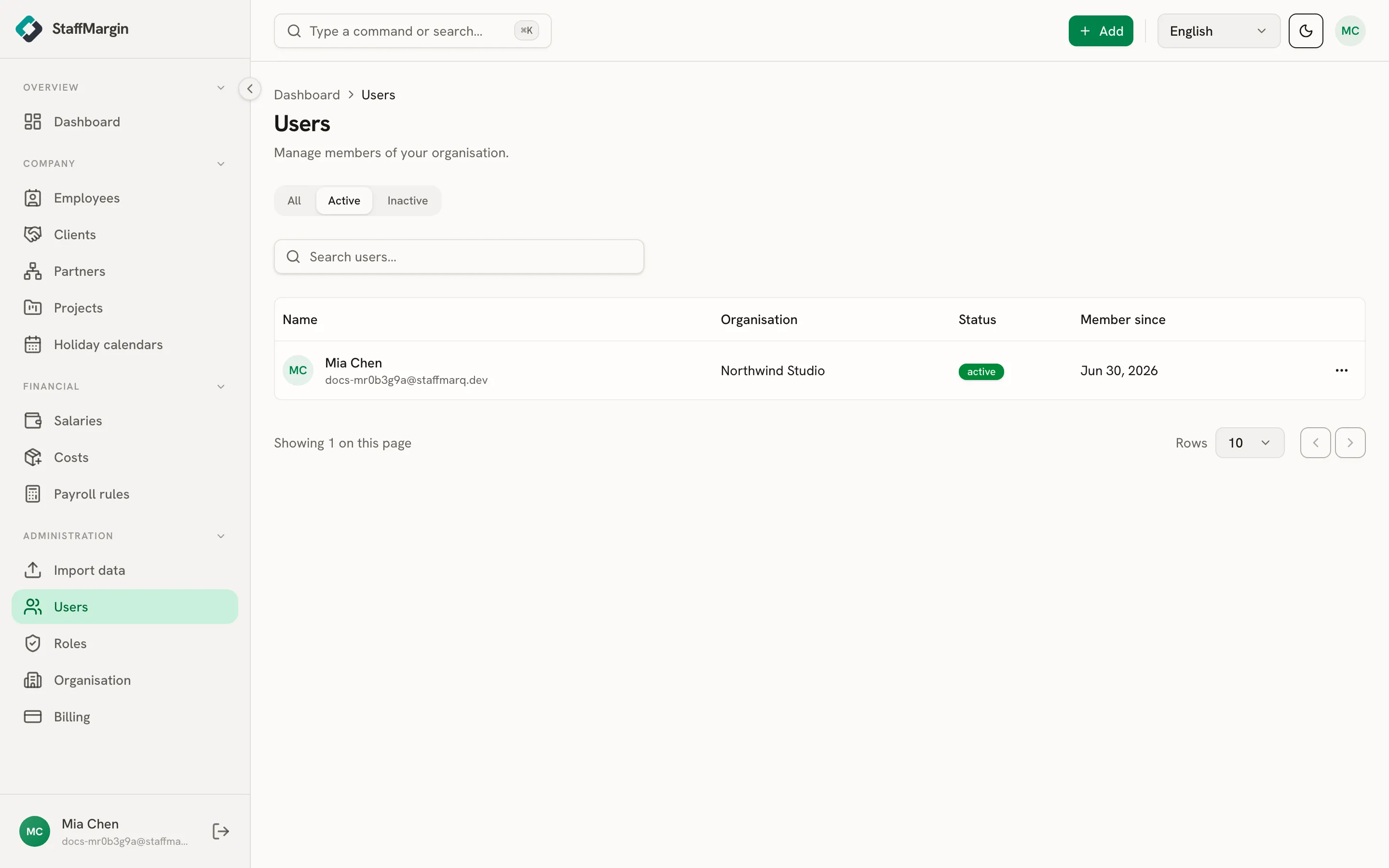
The columns are the Name, the Status (active or inactive), and Member since. Filter by active or inactive from the top. Row actions let you edit a profile, manage roles, reset a password, or deactivate the user.
Inviting a user
Section titled “Inviting a user”Invite someone from + Add, then Invite user. Enter their email and, optionally, a role to start them with.
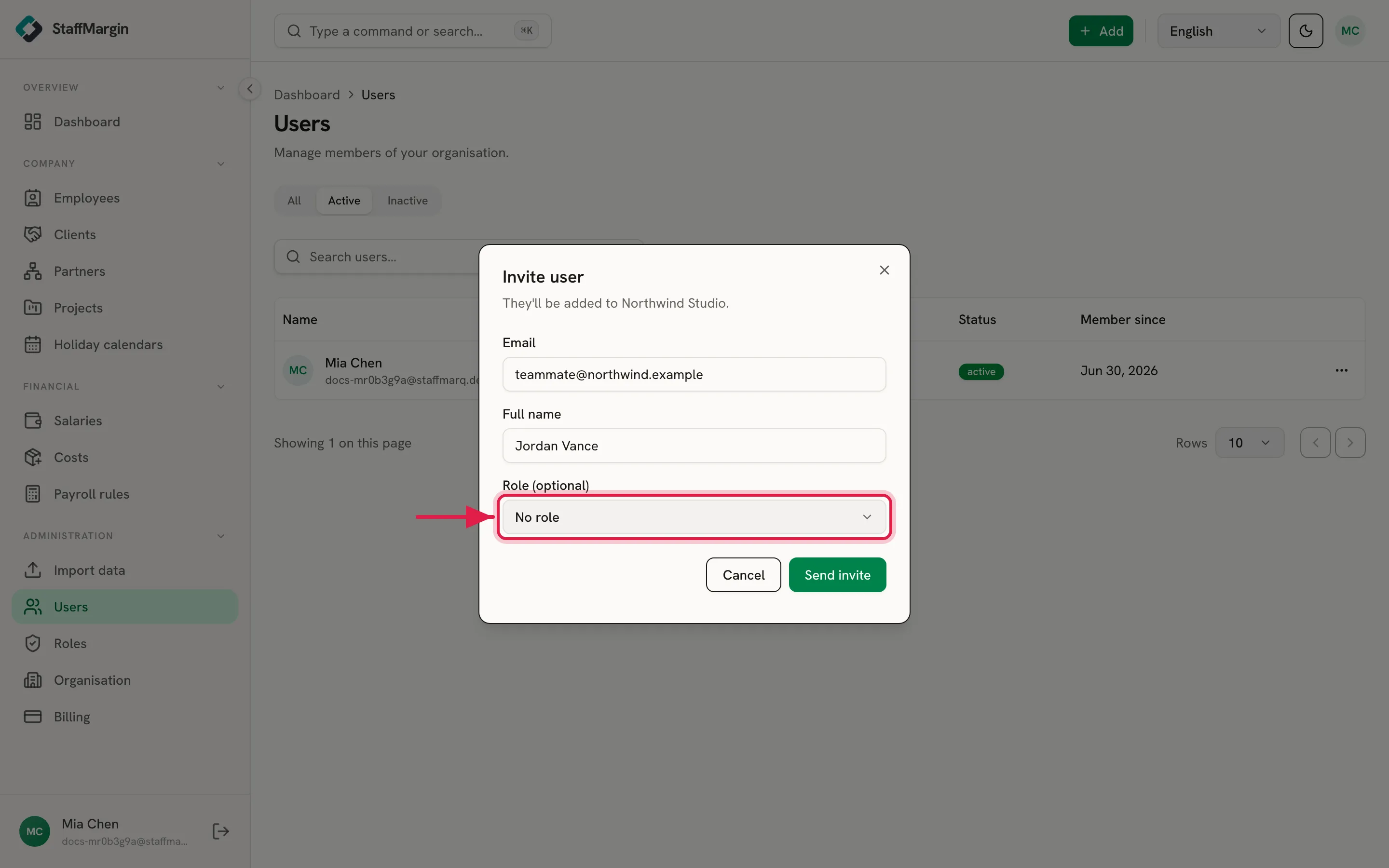
StaffMargin creates the account and gives you a temporary password to share with the person through a secure channel. It is shown once, so copy it before closing. If the email already has an account, they are simply added to your workspace instead.
Roles and access
Section titled “Roles and access”Inviting a user does not, on its own, grant any access. Access comes from roles, and a user can hold more than one. Use Manage roles on a user to add or remove roles, and their access to each area becomes the highest level any of their roles grants.
A user always needs the Roles area read access to pick from when inviting, which StaffMargin grants automatically. See roles and permissions.
Deactivating access
Section titled “Deactivating access”When someone leaves, Deactivate them rather than deleting. They can no longer sign in, but their history stays intact, so past margins still rebuild correctly. You can reactivate later if they return. StaffMargin will not let you deactivate the last active admin, so a workspace can never lock itself out.