
Roles
Access in StaffMargin is set per area of the app, so each person sees and changes only what their role allows. A role is a named set of access levels, one per area. You build roles here and assign them to users. Salary is the clearest reason this matters: someone can manage the whole team without ever seeing what anyone is paid, because pay is controlled on its own.
What the Roles page shows
Section titled “What the Roles page shows”The page lists every role with what it grants.
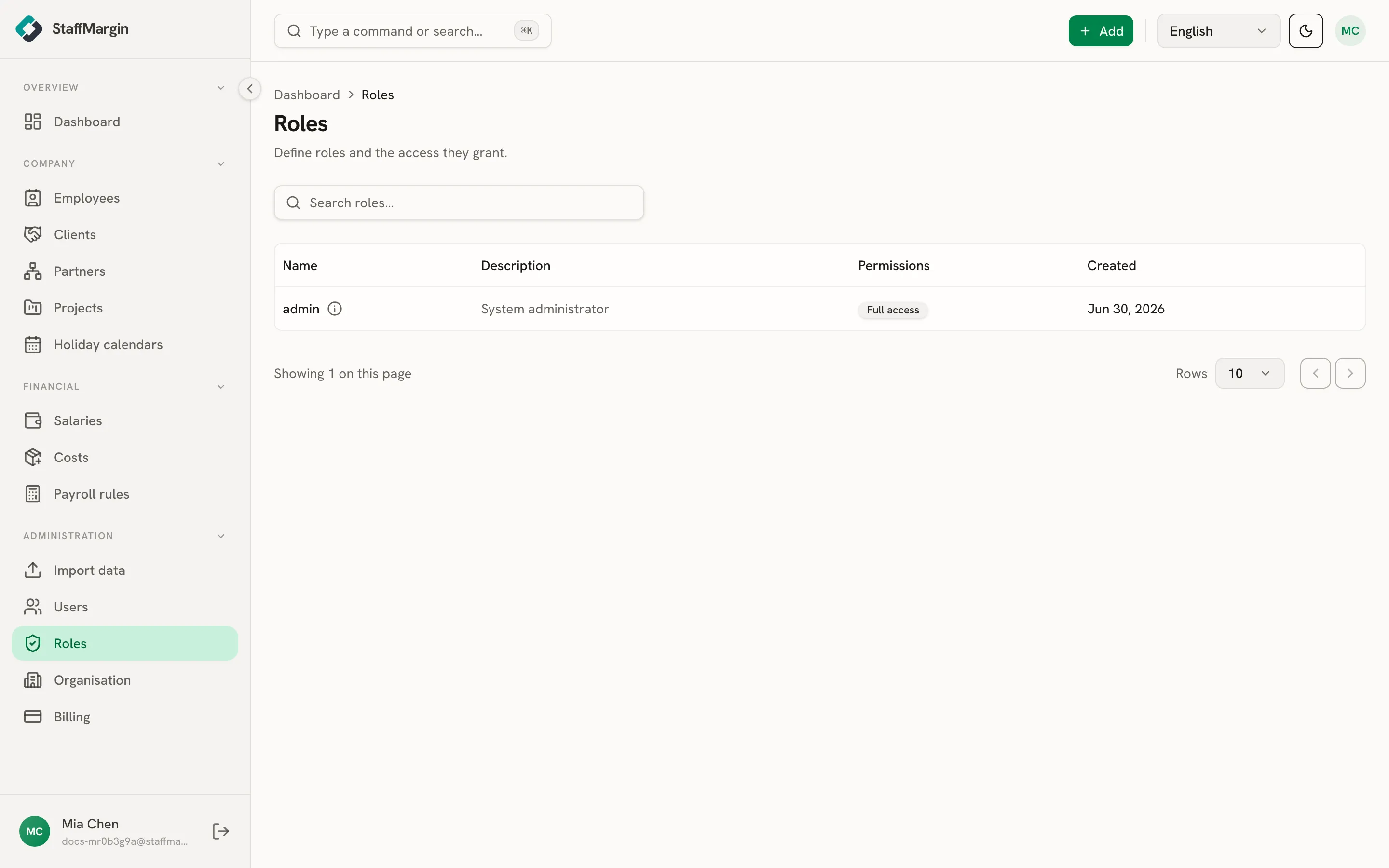
The columns are the Name, the Description, the Permissions it grants, and when it was Created. Every workspace starts with a built-in Admin role that has full access to everything and cannot be edited or deleted.
The four access levels
Section titled “The four access levels”Every area has one of four levels, from least to most.
- No access: the area is invisible. The person cannot open it, and it does not show in the sidebar or search.
- Read: view only.
- Write: view, plus create and edit.
- Full: everything, including shared, workspace-wide settings. Authoring shared configuration, like a payroll rule or a holiday calendar, needs full.
The levels are ordered, so a higher one includes the ones below it.
Building a role
Section titled “Building a role”Create a role from + Add, then Create role. Give it a name, then set the access level for each area.
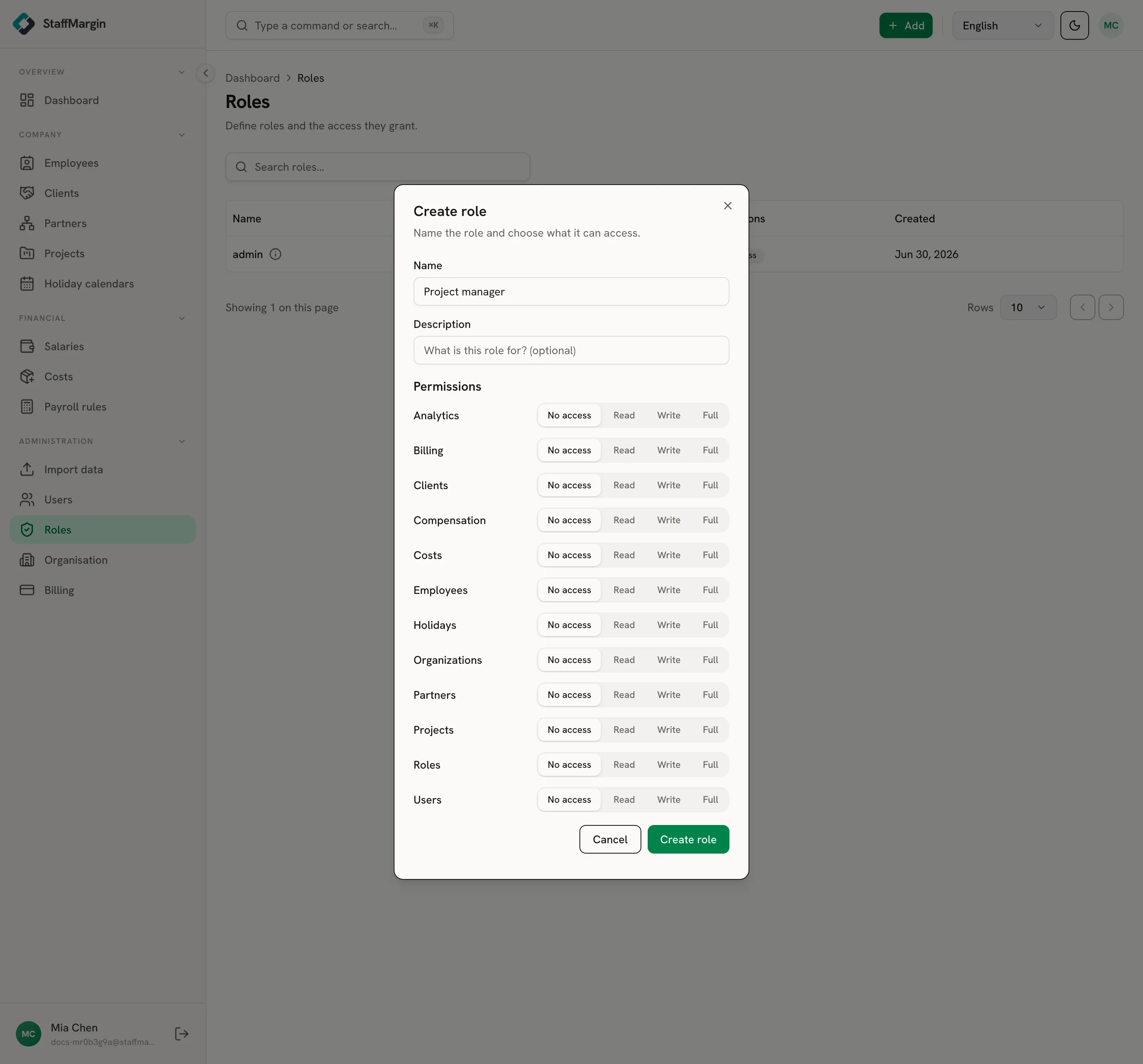
Access is granted separately for each area: Employees, Salaries, Costs, Clients, Projects, Partners, Holiday calendars, the Dashboard, Users, Roles, Organisation, and Billing. Each is independent, so a role can give full access to Clients and Projects, read on the Dashboard, and no access to Billing, in any combination you need.
Some grants pull in a prerequisite automatically. Granting any access to Salaries or Costs adds read on Employees, because those screens list people to attach to. Projects adds read on Clients and Employees. Letting a role invite users adds read on Roles, to pick from. StaffMargin adds these as you build, so a role is never half-wired.
Salaries is its own area
Section titled “Salaries is its own area”The reason roles are worth the effort is salary. Salaries is a separate area from Employees, and this is deliberate. Access to the team does not grant access to pay. A recruiter or project lead can have full access to Employees, Clients, and Projects, and still have no access to Salaries, so they never see a number.
If you want someone to see or edit pay, you grant the Salaries area explicitly. Nothing else exposes it. See salaries.
How access adds up
Section titled “How access adds up”A person can hold more than one role.
Give the built-in Admin role to the people who run the workspace: it has full access to every area, covers any new area StaffMargin adds, and cannot be edited or deleted. For everyone else, you assign one or more custom roles. Their access to an area is the highest level any of their roles grants, so a person with a read-only role and a write role on Projects ends up with write. Use Manage roles on a user to change who has what.
Hidden areas
Section titled “Hidden areas”An area below read is hidden entirely, not greyed out. A person without access to Salaries has no Salaries item in the sidebar or search.
Some areas also depend on your plan, not just the role. Partners only appears when your plan includes partner margins, regardless of what a role grants. See partner and subcontractor margins.